
Using Licenses
A license for ATPDesigner can be linked to two different information of the laptop/desktop.
- To the user's Windows username.
- To the MAC address of the laptop/desktop.
The figure below shows the licensing dialog that will be displayed automatically once the installation of ATPDesigner is complete. The text field License Name displays the Windows username and the MAC address, separated by a "|" (pipe).
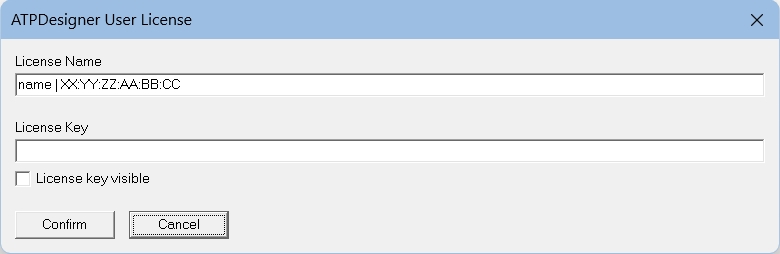
Licensing Process
The license must be applied as explained below.
- Delete the content of both input fields License Name and License Key in the licensing dialog.
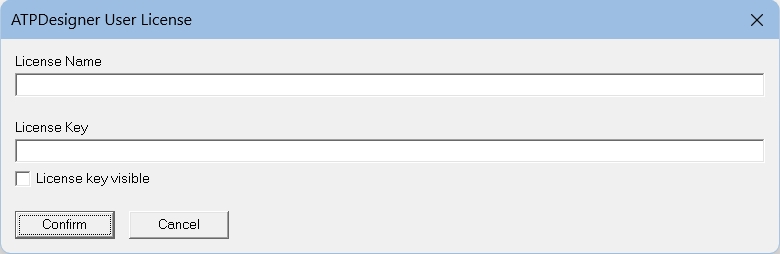
- Apply the Windows username or MAC address and the corresponding license from one of the license data sets.
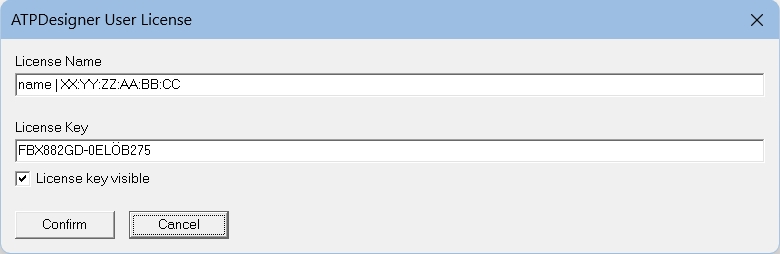
- Press the Confirm button.
If the licensing process has been successfully finalized, the license file ATPDesignerLic.ini will be saved in the directory c:\atpdesigner\exe. It is recommended that you back up the license file, for example in a ZIP archive. The license file validation results are displayed in the ATPDesigner message window after restart.
- Checking the license file: o.k.
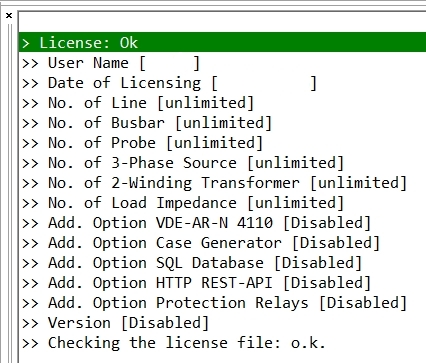
If the license cannot be successfully applied, no license file will be saved in the c:\atpdesigner\exe directory, and ATPDesigner will be closed automatically. The licensing process can restarted again.
Restart Licensing Process
The licensing process can be repeated as often as required.
- Delete the license file ATPDesignerLic.ini in the directory c:\atpdesigner\exe, if it exists.
- Restart ATPDesigner. The license dialog will displayed automatically.
- Restart the licensing process.